Understanding AWS Storage Gateway: A Practical Guide to Hybrid Cloud Storage

AWS Storage Gateway bridges your on-premises infrastructure with Amazon's cloud storage — letting you use familiar protocols like NFS, SMB, and iSCSI while your data lives safely in S3, EBS, or Glacier.
What Is AWS Storage Gateway?
AWS Storage Gateway is a hybrid storage solution that acts as a bridge that lets you use Amazon S3, Glacier, and EBS storage from your local servers and applications without completely overhauling your existing setup. Your On-Prem servers speak traditional storage protocols, and the gateway quietly converts those requests into AWS API calls for accessing stored data in S3, Glacier, or EBS. It connects your on-site physical or virtual machines to nearly unlimited cloud storage in AWS. It supports popular storage classes, including S3 Standard, S3 Infrequent Access, S3 Glacier, and Glacier Deep Archive. Because it must communicate with AWS in real time, a stable internet connection is required.
In today’s hybrid IT environments, many organizations need a smooth way to connect their on-premises infrastructure with scalable cloud storage. AWS Storage Gateway serves exactly this purpose.
Types of Storage Gateway
Three distinct gateway types, each designed for a different storage use case:


File Gateway
The File Gateway exposes S3 buckets as NFS (v3 / 4.1) or SMB (v2 / v3) shares. Your operating system sees a normal network drive; under the hood, every file becomes an S3 object.

Multi-site sharing: Deploy one File Gateway VM in Data Center 1 and another in Data Center 2, both pointing at the same S3 bucket. A file uploaded from DC1 becomes visible in DC2 after the
RefreshCacheAPI call kicks off a re-inventory on the second gateway.

File Gateway This is the most commonly used option for file-based workloads. It allows you to mount Amazon S3 buckets as standard network file shares using NFS (versions 3 and 4.1) or SMB (versions 2 and 3) protocols. When files are written to the share, they are stored as individual objects in S3. Features like object versioning automatically create new versions when files are modified, deleted, or renamed. This gateway is ideal for file servers, application data, and any scenario where you want to treat cloud storage like a local network drive.
Volume Gateway
The Volume Gateway works with iSCSI the protocol that makes a remote disk feel local. Your servers mount volumes just like physical hard drives, but storage lives in AWS. If your applications require block-level storage, Volume Gateway is the right choice. It presents storage volumes to your servers over the iSCSI protocol.

Stored Volumes: Your local disk is the primary storage (low latency reads/writes), and data is asynchronously backed up to S3 as EBS snapshots. All primary data stays on your local disks, while AWS takes asynchronous point-in-time snapshots to S3 (as EBS snapshots). This provides low-latency local access with cloud backup. Volumes range from 1 TB to 16 TB.
Cached Volumes: S3 is the primary storage. Only frequently-accessed data is cached locally on fast EBS volumes, while the full dataset resides in S3. This is the more cost-effective option since S3 pricing is lower than EBS. Maximum size per volume: 32 TB. This approach helps reduce on-premises storage costs significantly.
Volume Gateway is popular for databases, ERP systems, and other applications that traditionally use SAN storage.
Tape Gateway
For enterprises running tape-based backup workflows, Tape Gateway is a drop-in replacement. It presents a virtual tape library (VTL) over iSCSI — your existing backup software (Veeam, Veritas, etc.) keeps working unchanged, but instead of physical tapes going into a shelf, data flows directly into S3 Glacier or S3 Glacier Deep Archive.
This approach removes the cost and operational burden of physical tape hardware while preserving your existing backup schedule, retention policies, and tooling.
Tape Gateway Designed for organizations with existing tape-based backup processes. Tape Gateway emulates a virtual tape library. It connects via iSCSI and stores virtual tapes in S3 Glacier or Glacier Deep Archive for long-term, low-cost retention. This option allows companies to retire physical tape hardware while keeping their current backup software and workflows almost unchanged.
How AWS Storage Gateway Works ?
The core of the solution is a lightweight Storage Gateway Appliance. A virtual machine you deploy in your environment.
Here’s the basic data flow:
You install and activate the gateway appliance (either as a VM or hardware appliance).
The appliance creates a local cache (minimum recommended size is around 150 GB) to store recently used or frequently accessed data for fast performance. When applications write data, it first goes to the local cache. The gateway then asynchronously uploads the data to the appropriate AWS service (S3 for files/objects, EBS snapshots for volumes, or Glacier for tapes).
For File Gateway, you can use the RefreshCache operation to ensure all gateways see the latest files when working in multi-gateway setups. This caching mechanism delivers low latency for active data while leveraging the durability and scalability of AWS cloud storage.
Pricing
AWS Storage Gateway follows the standard AWS pay-as-you-go model. Costs depend on:
Gateway usage — charged per gateway per month
S3 storage — depends on storage class chosen and number of requests, billed per GB/month
EBS snapshots — charged per GB for any snapshots taken from Volume Gateway
AWS Region — pricing varies by geographic region
The most cost-effective approach for infrequently accessed data is pairing File Gateway with S3 Infrequent Access or Glacier storage classes. Always check the official AWS pricing page for current rates.
Deployment Options: Supported Host Platforms
Storage Gateway is delivered as a virtual appliance (OVA image) that you deploy on your existing hypervisor. No new hardware needed in most cases.
Virtual Appliance: Download the OVA template and run it on Supported platforms: VMware ESXi
Microsoft Hyper-V (2012 R2+)
Linux KVM
Amazon EC2Hardware Appliance: AWS offers a pre-configured physical device for environments where virtualization isn’t preferred.
Recommended resources for the VM include at least 16 GB RAM and 4 vCPUs, plus dedicated disks for the cache and upload buffer.
Advantages of AWS Storage Gateway
Zero hardware changes. Your existing servers, applications, and storage protocols continue working exactly as before. Support for existing protocols (NFS, SMB, iSCSI)
True hybrid storage. On-premises and cloud storage connects seamlessly. no forklift upgrades or migration required.
Smooth cloud migration path. Start with a gateway, gradually shift workloads to AWS at your own pace. Simplified data migration to AWS.
Built-in data protection through snapshots, versioning, and disaster recovery.
Cost optimization by moving cold data to cheaper storage classes
How to Deploy AWS Storage Gateway
The walkthrough below covers setting up a File Gateway on VMware ESXi and connecting an Ubuntu Linux machine to an S3 bucket over NFS. You'll need an AWS account and an ESXi host.
Step 1 — Download the VM Image
In the AWS Console, navigate to Services → Storage Gateway → Create Gateway.
1
2
The Create Gateway wizard opens. On step 1, choose File Gateway.
1
On the next step, select VMware ESXi as the host platform, then click Download image. The file will be named something like aws-storage-gateway-latest.ova. Keep the browser tab open — you will return to finish activation later.
1
Step 2 — Deploy the Virtual Appliance on ESXi
In VMware vSphere Client, right-click your ESXi host and choose Actions → Deploy OVF Template.
Minimum requirements for File Gateway: 16 GB RAM · 4 vCPUs · one 80 GB disk (OS) · one additional 150 GB disk (cache)
Select OVF template. Choose "Local file" and browse to your downloaded
.ovafile.

Name and folder. Give the VM a descriptive name (e.g.
aws-storage-gateway) and pick a vCenter inventory folder.
Compute resource. Select the ESXi host with enough free CPU and RAM.

Review details. Verify the template configuration before proceeding.

Select storage. Pick a datastore with sufficient space. Use Thick Provisioned format for the virtual disk for best performance.

Select networks. Attach the VM to a vSwitch connected to the internet.

Ready to complete. Review everything and hit Finish.
Wait until the Storage Gateway VM is deployed from the template. You can see the job status in the Recent Tasks toolbar in vSphere Client.
Once the VM is deployed, you can see the VM name you have defined before in the list of VMs of the appropriate ESXi host (10.10.10.90 in our case).
Right click the VM (aws-storage-gateway is the name of the Storage Gateway VM deployed from the template in this example) and in the context menu hitEdit Settings.
Add a new virtual hard disk for cache(150 GB cache disk).
This virtual disk is used to store recently accessed files and files that are accessed frequently to reduce latency when accessing that data.
After deployment, right-click the VM → Edit Settings → Add New Device → Hard Disk. Set the size to 150 GB with Thick Provisioning.

Make sure that time is set correctly on the Storage Gateway VM, ESXi hosts, and vCenter servers. Time on the VM must be synchronized to avoid issues and for successful gateway activation.
clickEdit Settings> VM Options > VMware Tools >Synchronize guest time with host” checkbox. HitOKto save settings.
Testing network connectivity
It is recommended to test the network connection of the Amazon Storage Gateway running as a VM locally with AWS cloud storage.
Power on the Storage Gateway VM > Log into the AWS Appliance VM by using the default credentials.

Enter the IP address of the VM (the Storage Gateway virtual appliance), not the external (WAN) IP of your router.
Click Connect to gateway.

Activate gateway.Activation of the gateway securely associates your gateway with your AWS account.
Select the gateway time zone. Enter the gateway name, for example Storage Gateway AWS.
- The name can be different from the name of the VM and the DNS name of the VM (appliance).
- Remember that TCP 80 port must be opened on the gateway VM.

Click Activate gateway and wait until the cache disks are identified.
Configure local disks. Ensure that your 150-GB virtual disk is allocated to cache. Then hit Configure logging.
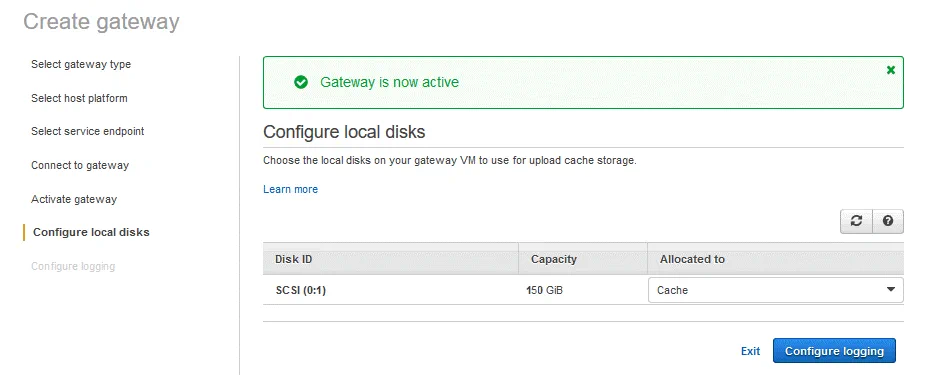
Now the File Gateway has been successfully created and it is running.

Creating a file share
It’s time to create a file share in order to connect to a bucket by using standard NFS or SMB (CIFS) protocols. Let’s configure the connection to an Amazon S3 bucket via NFS.


Squash level. Click Edit in the Mount options and select All squash to make sure that everything will work properly.

The NFS file share is created on your file gateway.
Conclusion
AWS Storage Gateway removes the friction between traditional on-premises infrastructure and the AWS cloud. Rather than rebuilding your storage architecture from scratch, you can continue using the protocols your systems already rely on — NFS and SMB for file-level access to S3, iSCSI for block-level access to EBS volumes, and virtual tape libraries as a seamless replacement for physical tape hardware.
This guide walked through the core concepts behind each gateway type and demonstrated a complete File Gateway deployment on VMware ESXi, culminating in a live NFS connection from Ubuntu Linux to an Amazon S3 bucket.
Beyond manual file transfers, Storage Gateway fits naturally into any backup strategy. Because it exposes standard NFS, SMB, and iSCSI interfaces, virtually any backup tool can use it as a target — giving organizations a straightforward path to offloading backup data to AWS without changing their existing workflows.